

Your shopping cart is empty!
 Call us: +1-(437)-290-7537
Best Business Desktop Computers for 2026: A Practical Buying Guide
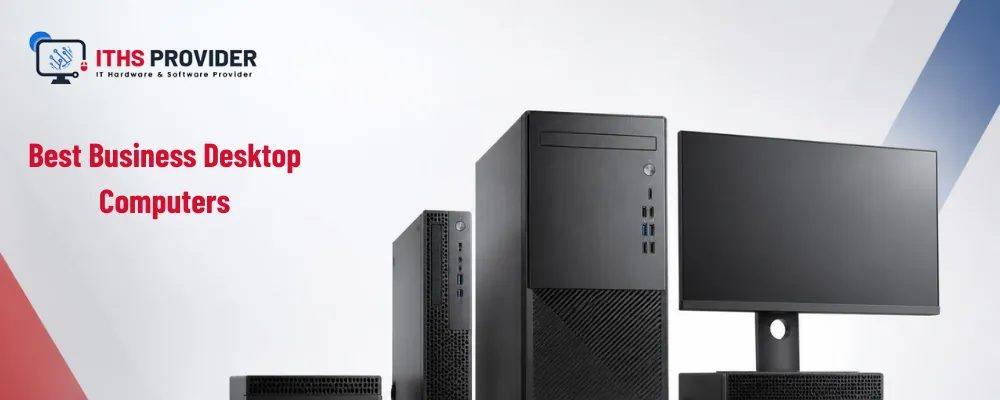
Buying office computers is not only about choosing the processor with the highest number or the cheapest system available. A desktop that is suitable for a receptionist may be frustrating for an accountant working with large spreadsheets. A computer that is perfect for a graphic designer may be unnecessary for someone who mainly uses email and web applications.
The best business desktop computers should match the employee’s workload, support the software they use, protect company data, and remain useful for several years. Businesses should also consider warranty coverage, repairs, security updates, replacement availability, and the total cost of keeping each system in service.
In 2026, the most sensible approach is to create a few standard computer configurations for different employee roles. This makes purchasing and support easier while ensuring that staff receive the performance they actually need. This guide from ITHS Provider explains how to choose the right desktop for each role.
Table of Contents
What Makes a Desktop Suitable for Business?
A business desktop should provide dependable performance, secure hardware, current operating-system support, and a practical upgrade or replacement path.
Business-focused desktop families from manufacturers such as Dell, HP, and Lenovo commonly offer features that are useful in professional environments. These may include business warranties, serviceable components, optional security features, device-management support, and consistent configurations for larger orders.
For a business, reliability also includes what happens after the purchase. A computer that fails and cannot be repaired quickly may cost more through lost employee time than a slightly more expensive system with better support.
A suitable business desktop should generally provide:
- A processor that matches the employee’s workload
- Enough memory for current applications and multitasking
- SSD storage for quick startup and application loading
- Support for current security updates
- Appropriate ports and network connectivity
- A warranty and support option that match the business need
- A realistic replacement and backup plan
The best desktop computer for business is therefore not the same for every employee.
Best Business Desktops by Employee Role
| Employee or workload | Suitable desktop type | Practical starting specification | Examples of suitable work |
|---|---|---|---|
| Reception, scheduling, and basic administration | Compact business desktop | Core i3 or Ryzen 3, 8 to 16 GB RAM, 256 to 512 GB SSD | Email, calendars, documents, web applications, visitor management |
| General office work | Small-form-factor business desktop | Core i5 or Ryzen 5, 16 GB RAM, 512 GB SSD | Microsoft 365, browser software, video meetings, CRM, spreadsheets |
| Finance and data work | Expandable business desktop | Core i5 or Core i7, Ryzen 5 or Ryzen 7, 16 to 32 GB RAM, 512 GB to 1 TB SSD | Large Excel files, accounting software, reporting, data analysis |
| Managers and business owners | Business desktop with strong connectivity | Core i5 or Core i7, 16 GB RAM, 512 GB to 1 TB SSD | Multitasking, presentations, cloud systems, video conferencing |
| Developers and technical users | Performance desktop or workstation | Core i7, Core i9, Ryzen 7, or Ryzen 9, 32 GB RAM, 1 TB SSD or more | Software development, testing tools, containers, virtual machines |
| Designers and content creators | Business workstation | Core i7 or Core i9, Ryzen 7 or Ryzen 9, 32 GB RAM or more, dedicated graphics | Video editing, CAD, design, animation, photography, 3D work |
These are starting points rather than fixed purchasing rules. The software’s recommended requirements should be checked before an order is placed. A user who works with a large accounting database may need more memory than another employee with the same job title.
Real Business Desktop Examples
Dell OptiPlex
The Dell OptiPlex family is widely used for office deployments because it is available in different sizes, including compact and small-form-factor designs. Businesses can select configurations for basic administration, general office work, or more demanding multitasking.
An OptiPlex-style system may suit a reception desk, call center, accounting department, or standard office workstation. A business should check the exact model before buying because port selection, memory access, storage options, and expansion space vary between configurations.
HP ProDesk and EliteDesk
HP’s ProDesk and EliteDesk families are designed for professional use and are available in compact, small-form-factor, and tower configurations.
A compact HP business desktop can be useful where desk space is limited. A larger tower may be a better option for finance users, technical employees, or businesses that expect to add storage or expansion cards later.
The EliteDesk range may be considered when a business places greater importance on security features, manageability, or a wider selection of business configurations. The precise features depend on the generation and model.
Lenovo ThinkCentre
Lenovo ThinkCentre desktops are available in small, compact, and tower designs. Tiny models can be mounted behind compatible monitors or placed in restricted work areas, while larger models provide more space for upgrades.
ThinkCentre systems may suit offices, reception areas, education environments, call centers, and businesses that want a consistent desktop fleet. Before choosing a Tiny or compact system, check whether its memory and storage can be upgraded because very small computers often provide less internal expansion.
Apple Mac mini
The Mac mini can be suitable for businesses that use macOS software or have employees working in design, media, development, or other Apple-supported environments.
It is compact and quiet, but the monitor, keyboard, mouse, and other accessories must usually be purchased separately. Businesses should also confirm that their accounting, customer-management, security, printing, and remote-support tools work properly with macOS before standardizing on Mac desktops.
Workstations for Specialist Users
Users working with CAD, 3D design, engineering software, animation, scientific applications, or professional video editing may need a workstation rather than a standard office desktop.
A workstation may offer a stronger processor, more memory, professional graphics, additional storage, and certification for particular applications. It should be selected according to the software vendor’s requirements. Buying a workstation without checking application compatibility can result in unnecessary expense.
Processor: Choose for the Workload
The processor affects how quickly a computer handles applications and multitasking. For most office users in 2026, a current Intel Core i5 or AMD Ryzen 5 processor is a sensible starting point.
This class of processor is generally suitable for email, documents, browser-based applications, video meetings, customer-management systems, and normal spreadsheet work.
Core i7, Core i9, Ryzen 7, and Ryzen 9 systems may be more appropriate for employees who use large datasets, development tools, virtual machines, engineering applications, or media-production software.
Processor names alone do not tell the full story. Check the exact generation, core and thread count, power requirements, integrated graphics, warranty, and compatibility with the software the employee uses.
For example, paying extra for a high-end processor will not improve a receptionist’s daily work if the actual limitation is a slow internet connection or insufficient memory. In contrast, a developer running several virtual machines may notice a significant difference between a mid-range and high-performance processor.
How Much RAM Does a Business Desktop Need?
RAM affects how comfortably a computer can run several applications at the same time.
For most new office desktop computers, 16 GB of RAM is a practical starting point. It gives users more room for browser tabs, office applications, video meetings, messaging tools, and business software than an 8 GB system.
An 8 GB desktop may still be suitable for light use, such as reception, basic scheduling, or a shared workstation. However, it may feel restrictive as applications become more demanding.
Users working with large spreadsheets, reporting tools, design applications, development environments, or virtual machines may need 32 GB or more. If the computer will remain in service for several years, check whether the memory can be upgraded.
SSD Storage and Business Data
An SSD usually provides faster startup and application loading than a traditional hard disk. For most business desktops, a 512 GB SSD is a sensible starting point.
A 1 TB SSD may be more suitable for employees who store project files, media, local databases, or other large files on the computer. However, businesses should not treat a larger local drive as a replacement for proper shared storage or backup.
A better office computer setup defines where business data should be stored. Important files may belong on approved cloud services, a shared server, or dedicated data storage solutions rather than only on an employee’s desktop.
This makes it easier to back up information, replace a failed computer, and control access to company data.
Integrated or Dedicated Graphics?
Integrated graphics are normally enough for:
- Email and office applications
- Web browsing
- Video meetings
- Customer-management software
- Standard presentations
- Most accounting systems
A dedicated graphics card may be required for:
- Video editing
- 3D modelling
- Computer-aided design
- Animation
- Engineering software
- Professional photography
- Some data-science and artificial-intelligence workloads
Businesses should not pay for a dedicated graphics card unless the employee’s applications can use it. For a general office user, extra memory, a better monitor, or a faster SSD may provide more practical value.
Windows 11 and Desktop Security
A business desktop should support a current operating system and receive security updates throughout its planned service life. Microsoft’s Windows 11 system requirements should be checked before purchasing or upgrading equipment.
Modern business computers may include security features such as:
- Trusted Platform Module support
- Secure Boot
- Firmware protection
- Device encryption
- Biometric sign-in
- Hardware-based security controls
- Support for centralized device management
These features are important, but they do not replace good IT practices. Each computer should also use appropriate access controls, endpoint protection, updates, backups, and account-management procedures.
The NIST Cybersecurity Framework can help businesses organize security activities across their technology environment.
Choosing the Right Desktop Size
Mini and Tiny Desktops
Mini desktops take up very little space and may be mounted behind a monitor or placed under a desk. They are useful for reception areas, call centers, classrooms, shared workstations, and basic office tasks.
Their main limitation is restricted internal space. Before buying one, check cooling, repair access, memory, storage, available ports, and upgrade options.
Small-Form-Factor Desktops
Small-form-factor systems offer a balance between compact size and serviceability. They are a practical choice for many office desktop computers because they fit under or beside a monitor while offering more flexibility than the smallest mini systems.
They may support additional memory or storage, but the exact options vary by model.
Tower Desktops
Tower systems provide more space for storage drives, graphics cards, expansion cards, and additional cooling. They are suitable for demanding users, workstations, and businesses that expect to upgrade components later.
The trade-off is that they take up more space and normally require a separate monitor, keyboard, and mouse.
All-in-One Desktops
All-in-one computers combine the display and computer in one unit. They can make a reception area or office look tidy and reduce cable clutter.
They may be convenient, but repairs and upgrades can be more difficult than with a standard desktop. If the display or main computer component fails, the whole unit may need service. Businesses should also consider how easily the same model can be replaced later.
New, Refurbished, or Custom-Built?
New Business Desktops
New desktops provide current components, manufacturer warranty, consistent specifications, and predictable support. They are often the simplest option when a business is deploying several computers at once.
They also make it easier to maintain standard images, security policies, applications, and replacement procedures.
Professionally Refurbished Desktops
Refurbished business desktops can reduce the initial budget, particularly for general office roles. They may be suitable when the systems have been tested, securely wiped, supplied with legitimate software, and backed by a clear warranty.
Before buying refurbished equipment, ask about the processor generation, SSD health, battery condition if applicable, memory, operating-system licensing, testing process, warranty, return terms, and availability of matching replacement units.
A low price is not useful if the equipment has no warranty or cannot run the software your business requires.
Custom-Built Desktops
Custom-built computers can be useful for specialist users who need particular processors, graphics cards, memory, storage, or expansion options.
However, the business may become responsible for coordinating support between several component manufacturers. Warranty claims, replacement parts, driver compatibility, and long-term maintenance should be considered before choosing this approach for a company-wide deployment.
Business Desktop Cost and Total Value
The desktop computer cost includes more than the price shown on the quotation.
A realistic comparison may include:
- Computer and monitor
- Keyboard, mouse, webcam, and other accessories
- Operating-system licensing
- Security and management software
- Warranty and support
- Setup and deployment time
- Data transfer
- Repairs and maintenance
- Energy use
- Employee downtime
- Secure disposal
- Replacement planning
A cheaper computer can become more expensive if it is slow, difficult to repair, unsupported, or replaced after a short period.
Businesses should compare the total cost over the expected service life. A computer that costs slightly more but remains useful for five years may provide better value than a cheaper model that needs replacement after two or three years.
Desktop Security and Asset Management
Every business computer should be recorded as part of the company’s IT assets. Keep details such as the serial number, assigned employee, location, operating system, warranty, security status, purchase date, and planned replacement date.
Asset records help the business:
- Track equipment and warranties
- Plan replacements
- Identify unsupported computers
- Investigate security incidents
- Manage software licenses
- Recover equipment when employees leave
- Remove old devices securely
The CISA Secure Our World guidance includes practical advice about strong passwords, multi-factor authentication, software updates, and phishing awareness.
A desktop should also be configured with appropriate user permissions. Employees should not normally have unrestricted administrator access unless there is a clear business reason.
Business Desktop Setup and Deployment
A proper business computer setup involves more than placing a desktop on a desk and connecting a monitor.
Before giving the computer to an employee, the support team should install updates, configure user access, apply security controls, install approved applications, connect printers, test network access, and confirm that backup or cloud-storage settings work correctly.
The setup should also account for the employee’s desk and working conditions. A finance user may need two monitors for comparing reports. A customer-service employee may need a headset and webcam. A designer may need a color-accurate display, while a receptionist may need a compact system that leaves space for visitor-management equipment.
Standardized setup procedures make it easier to support users and replace computers without repeating the entire process from the beginning.
Maintenance and Replacement Planning
Regular maintenance can extend the useful life of a desktop and reduce unexpected interruptions.
Keep the operating system, drivers, applications, and security tools updated. Check storage health, investigate unusual noise or overheating, keep ventilation clear, remove unnecessary software, and review security alerts.
Businesses should also record repairs and upgrades. If a computer repeatedly requires repairs or struggles with essential applications, replacement may be more economical than continued maintenance.
Many business desktops can remain useful for approximately four to six years, but there is no fixed replacement date for every organization. Workload, hardware quality, software requirements, warranty status, security support, and reliability should all be considered.
Choosing Desktop Computers for Small Businesses
Small businesses often need to balance cost, performance, support, and future growth. Instead of purchasing a different model for every person, create two or three standard configurations.
For example:
- A standard office desktop for administrative staff
- A higher-performance desktop for finance, management, and heavy multitasking
- A workstation for design, development, or technical work
This approach simplifies procurement, software deployment, repairs, and replacement. It also gives employees suitable performance without paying workstation prices for basic office tasks.
When comparing the best desktop computers for small business, check whether replacement systems will still be available in two or three years. A consistent product family can be more valuable than a one-time discount.
Common Buying Mistakes
- Choosing the cheapest specification for everyone: Different employees use different applications, so one configuration may not suit the whole company.
- Buying based only on processor branding: Generation, memory, storage, cooling, and software compatibility matter as well.
- Ignoring the monitor: A poor display can affect productivity, especially for finance staff, designers, and employees working with documents all day.
- Forgetting warranty and support: A desktop with limited support can create unnecessary downtime when something fails.
- Ignoring upgrade options: Some compact systems have limited memory and storage access.
- Keeping important files only on the desktop: Business data should be stored and backed up according to company policy.
- Failing to plan replacements: Track the age, condition, warranty, and performance of each device.
Frequently Asked Questions
Final Thoughts
The best business desktop computers for 2026 are not defined by one brand or one specification. The right choice depends on the employee’s workload, applications, security requirements, office setup, budget, support needs, and expected service life.
For many office users, a current mid-range processor, 16 GB of RAM, a 512 GB SSD, supported operating-system features, and a reliable warranty provide a strong starting point. More demanding roles may require 32 GB or more memory, additional storage, dedicated graphics, or a workstation-class system.
The most practical buying strategy is to create a small number of standard configurations, match them to employee roles, and compare the full cost of ownership. Businesses should also plan the office computer setup, protect company data, track every device, and schedule replacements before systems become unreliable.
Businesses that need help comparing desktop computers or managing their office technology can use IT support services for setup, maintenance, troubleshooting, and device management.
Need Help Choosing Business Desktop Computers?Choosing the right desktop depends on your workloads, software, budget, and support needs. ITHS Provider can help you select, configure, and manage business desktop systems. |
-160x160.webp)
Leave a Reply
Your email address cannot be published. Required fields are marked*


Information
Customer Service
My Account
©2026 ITHS Provider (A Project of Mehta Corp.) - All Rights Reserved.

No comments